Something cool I was able to do in August was provide a second livestream of Beach LAN 13 using my phone and some AV equipment. The main benefits to doing this are you can use your phone's data instead of an internet connection (which might not be available to you), and that means you can have a super portable setup that could fit in just one backpack, perfect for travelling to a weekend LAN.
Now I am a bit of a data hoarder, and that obviously extends to hoarding gameplay film for Halo. I don't really know precisely why, but I think it's cool to be able to pull backup old clips and highlight cool moments. I also am a stat nerd and if we have footage that means we can parse stats from the postgame carnage reports, something I plan on doing for Beach LAN 13 eventually.
So those were the main motivaitons to capture all of the non-streaming stations at Beach LAN. When I decided I was going, I let McDick and Devilman know I wanted to capture more stations if that was OK and they told me it was, and that they were largely using CRT Monitors and x2vga+ adapters. While as a player that is awesome, that presented a challenge for capturing video from each station.
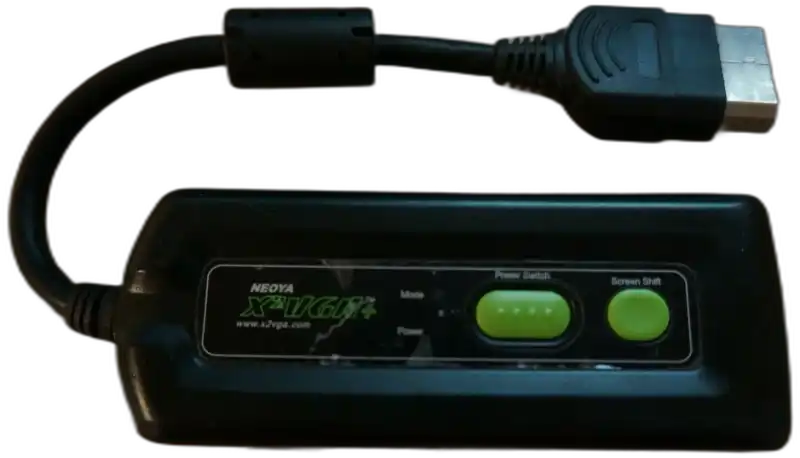
It's fairly easy to find equipment that splits out a component or HDMI signal, and then capture that signal. For VGA it's fairly uncommon find direct video capture hardware though. And on top of that I need to make sure I have VGA loop out that doesn't introduce any lag in the chain. Fortunately I found a device that did that, and converted the secondary output to HDMI, and also could do PIP with an additional composite input which means I could even get a POV camera for the players which was going to be needed for indentifying in-game names.
This miracle device is the Crestron Capture HD. Meant to record lectures in educational settings it's supposed to trivially allow a teacher to start a recording or livestream, show their slides and at the same time show them. On paper this device was perfect, but the experience left a little bit to be desired. Looking through the manual I was able to confirm the VGA loop out was indeed lagless which was a requirement. Without that I wasn't going to move forward with these. But setting these things up to also record locally to a USB thumb drive ended up being a huge pain in this ass that only Kind Of Worked.
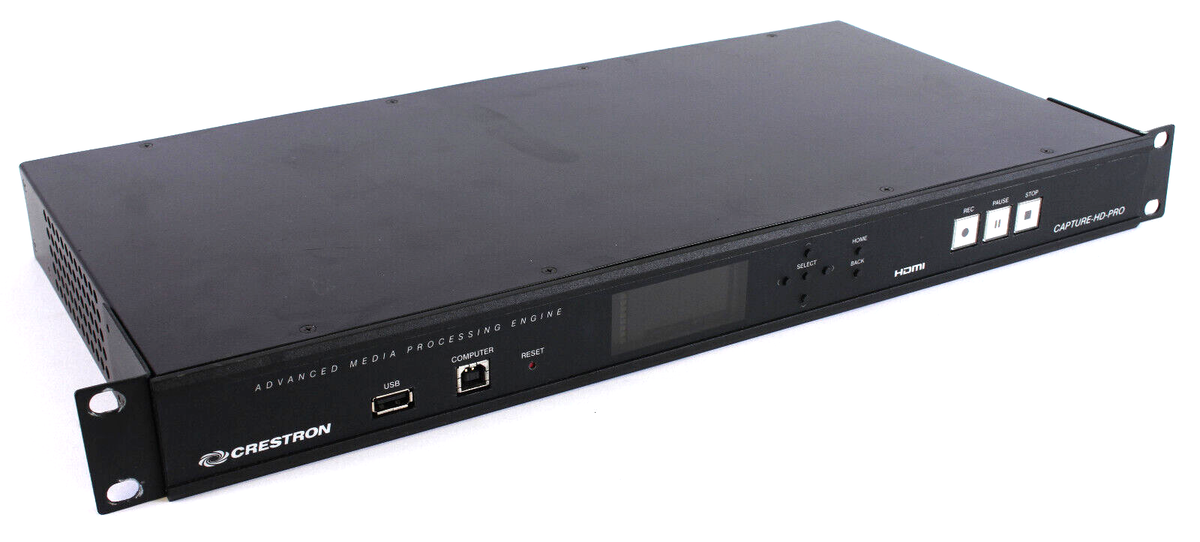
Kind of worked in that they did record video, but there was always issues. The audio almost always falls out of sync. The thumb drives have a FAT32 4GB size limitation. Even at very low encoding profiles they don't seem to execute a perfect recording even if it's only like 30 minutes. Either video frames or audio frames drop always. So while I used these to record all of the side stations, they only kind of did that job and I'll have to figure out a better plan for doing that next year.
But this post is about livestreaming, so how did I do that? Well like I said above the secondary output on these was HDMI so I was able to take a pair of those HDMI outputs and set up a livestream simultaneously while each device also recorded locally. Pretty cool, right? If these devices Just Worked when it came to recording locally, they would be so amazing and are also very cheap. But when searching around for people talking about them they generally seem to indicate they just weren't ever good and it wasn't like I just had a bad batch of them or ones that needed a newer firmware or something.
Anyway, my livestream plan involved multiple contingencies and a lot of testing before heading down to Tampa to ensure at least one method would work. Here's the main options I had in order of Most Convenient to Least Convenient:
- Use my phone as a hotspot, connect a laptop to it over wifi and just livestream from OBS on the laptop.
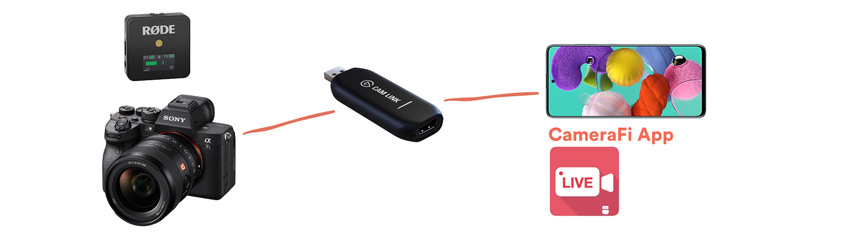
- Use CameraFi Live on my phone and stream directly from it, using an USB UVC HDMI capture card, a USB OTG adapter, and take the output from the laptop and use that on the HDMI input connected to my phone.
- Use CameraFi Live on my phone and stream directly from it, using an USB UVC HDMI capture card and just directly plug in one HDMI feed into it, no OBS overlays or anything else.
While the first option ended up not working (because the hot spot connection I think fluctuated too much for OBS' liking), the second one was the one I ended up going with. The benefit to the second option over the third, was that I could take two HDMI inputs into the laptop, using generic USB HDMI capture cards, and create a scene in OBS that showed both POV's on a background to make the aesthetic fairly good. If I had to go with option three it would have just been one POV with nothing fancy going on.
This ended up working really well, outside of using a cheap HDMI capture card that resulted in a blurry feed for the right POV, and using IR security cameras that resulted in terrible blair-witch-esque video of the player's due to the low light situation. The other major drawback was my phone being physically tethered to the stream station as long as it was streaming. If I had been able to use it as a hot spot, the phone could have in theory been in my pocket the whole time as I played games.
So overall the livestream worked really well. The main key to livestreaming is this app called CameraFi Live. At the time of this writing it's basically the only app that Just Works when it comes to using a camera/capture input on your phone that isn't one of the cameras embedded in your phone. As you can see in the youtube embed at the top of this page, this is primarly so people can connect their professional camera to their phone for IRL streaming, but you can in theory connect any sort of video standard (HDMI, VGA, Component, etc.) into it with the right capture card.
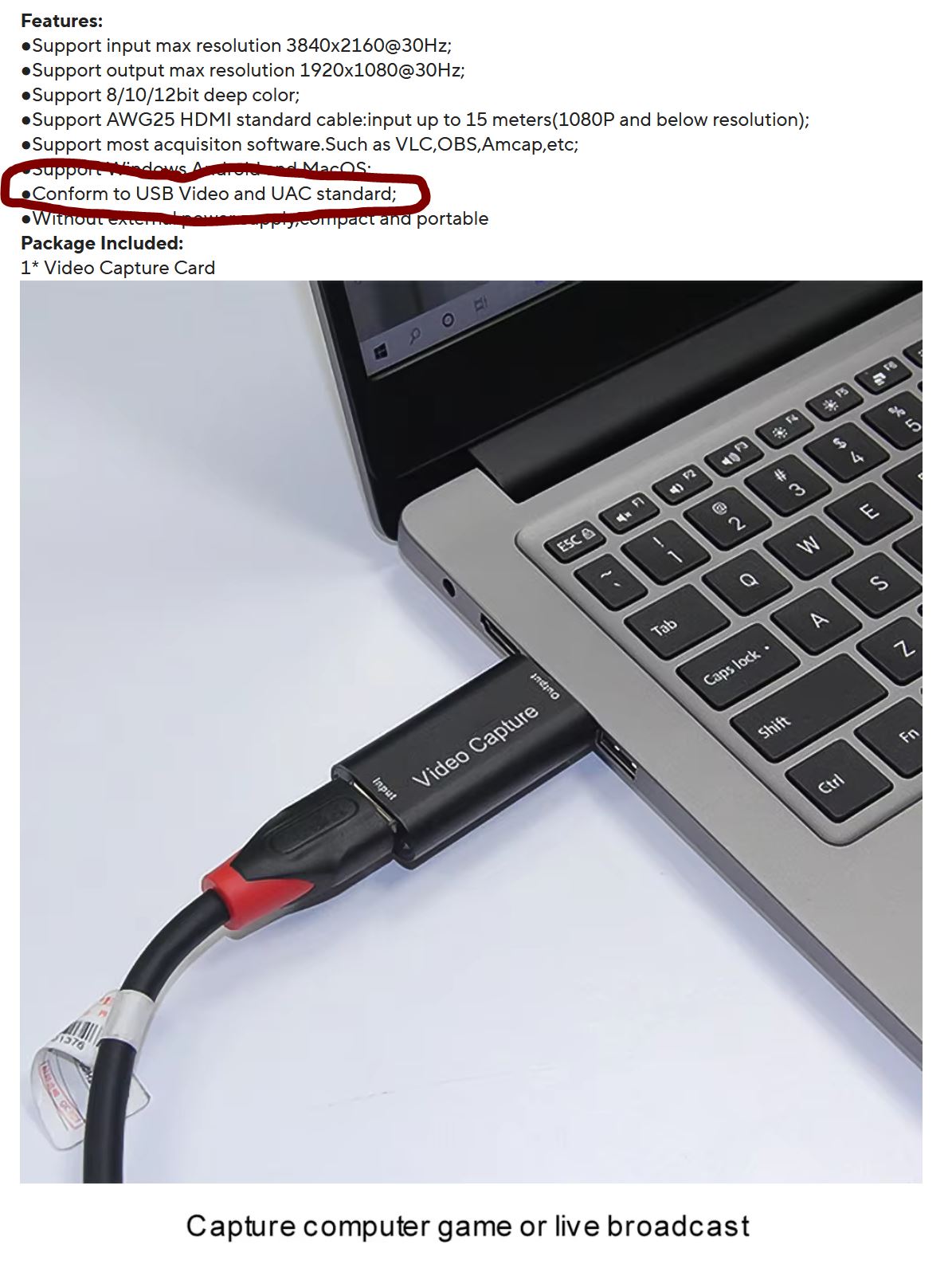
The right capture card is one that claims to be UVC, or Usb Video Class. Basically instead of requiring a specific set of drivers to be installed and used, operating systems (including Android) come with drivers built-in already that can handle any device that adheres to this standard. So that means USB UVC Capture Cards are plug and play.
The other key aspect here is enabled USB OTG on a phone. The USB port on your phone is generally meant to allow your phone to be recognized as a device on other computers, but USB OTG flips this and allows your phone to recognize other USB devices. All you simply need is a USB HUB with OTG capability and probably one that also allows your phone to be charged at the same time, otherwise your phone might run out of battery.
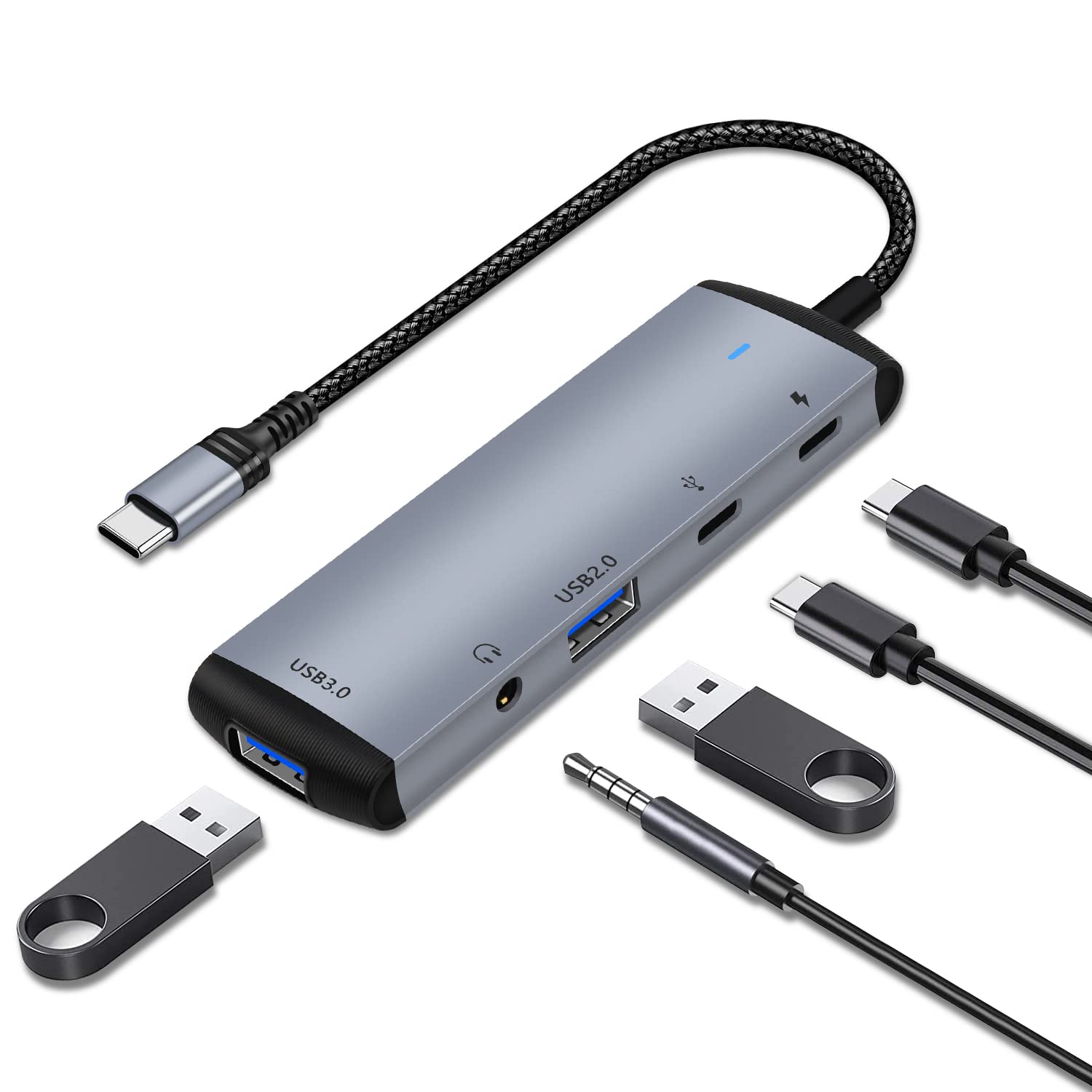
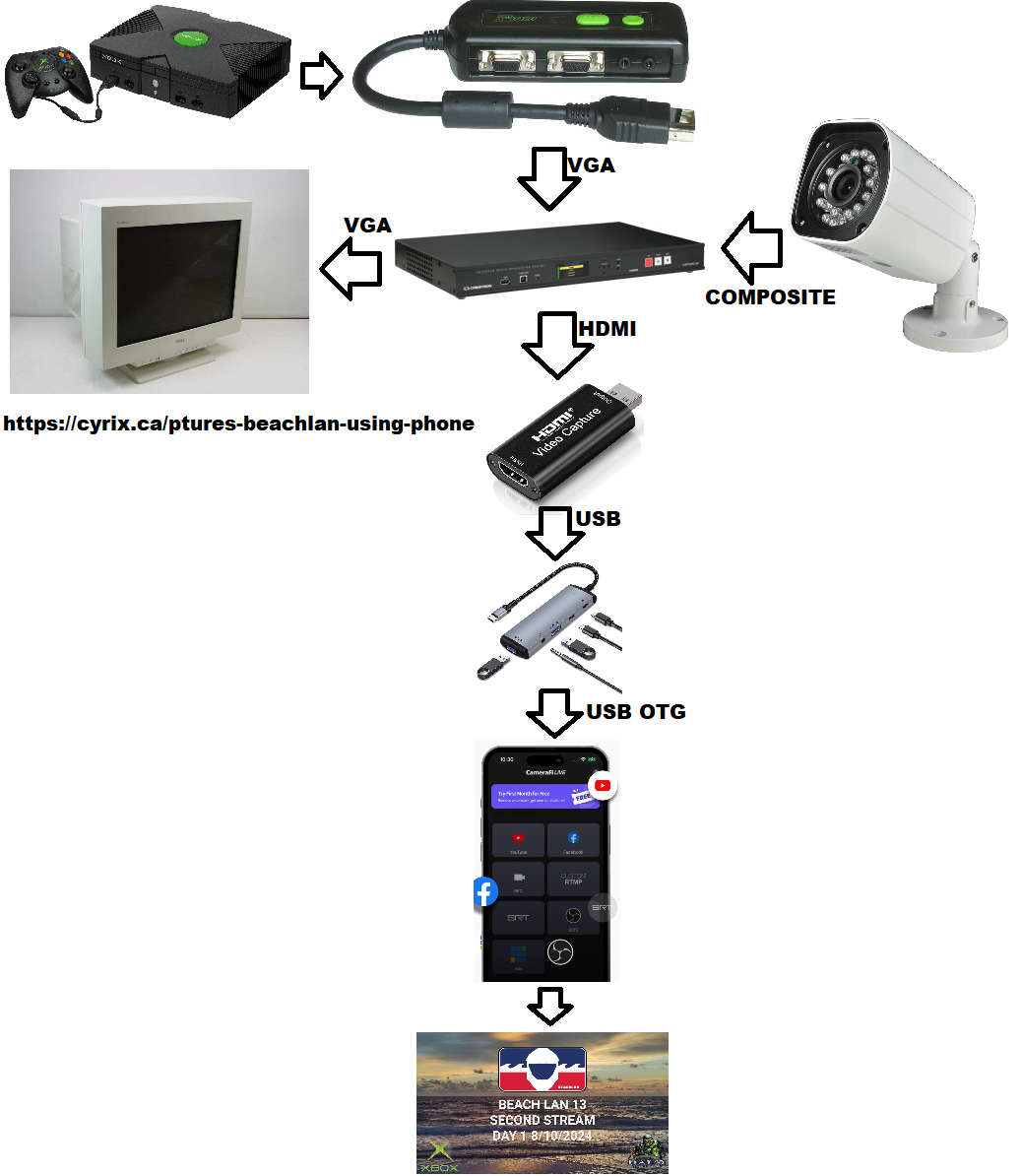
So that's all there really is to it. You use CameraFi Live as the software on your phone. You use a USB HUB with OTG and a USB UVC HDMI capture card to get the ability to plug an HDMI feed as a source in CameraFi Live. And you plug in to that HDMI port the feed you are trying to stream. If your Xbox is connected using an Xedusa, for like $100 you have all you need to tap into an Xbox and livestream it to anywhere in the world. With things that all can quite literally fit in your pocket.
Obviously I went a little beyond that. CameraFi Live has the ability to add some overlays itself (including a chat feed), but setting those up on your phone is tedious and their app isn't super intuitive. Their app is also freemium. I signed up for the free month trial to get rid of the watermark and enable the chat feed, but you don't have to pay anything if you don't want to. It's kind of a shame Twitch's app doesn't have any of this as that would certainly result in the stream quality being a little bit better as I would say through CameraFi Live and my phone, it was just OK. Some combination of my phone and data plan meant the bitrate I could encode and transmit was just a bit lower than optimal.
So that's the brain dump. It's not too hard to set this up. It can be extremely portable and extremely cheap. The flexibility it provides means you don't need to check a ton of bags for all of the equipment. Hopefully this helps someone figure out a way to livestream their old videogame LAN or tournament. Here's a diagram of the setup that might help.
I'm sure I did. Please correct me in my discord channel